
Introduction to Figma
Figma launched in 2026 is a professional design tool used across the industry to create user interfaces, wireframes, and interactive prototypes. It runs entirely in the browser, making it accessible on any device without installation. However app installation is encouraged for our classroom. Designers use it to build everything from early-stage wireframes to polished, production-ready screens — and with its built-in prototyping features, those designs can be made interactive and shareable with a single link. Figma also supports real-time collaboration, meaning multiple people can work inside the same file simultaneously, much like a shared Google Doc. It’s the industry standard and the same tool you’ll find used at most design teams today.
Figma’s Interface

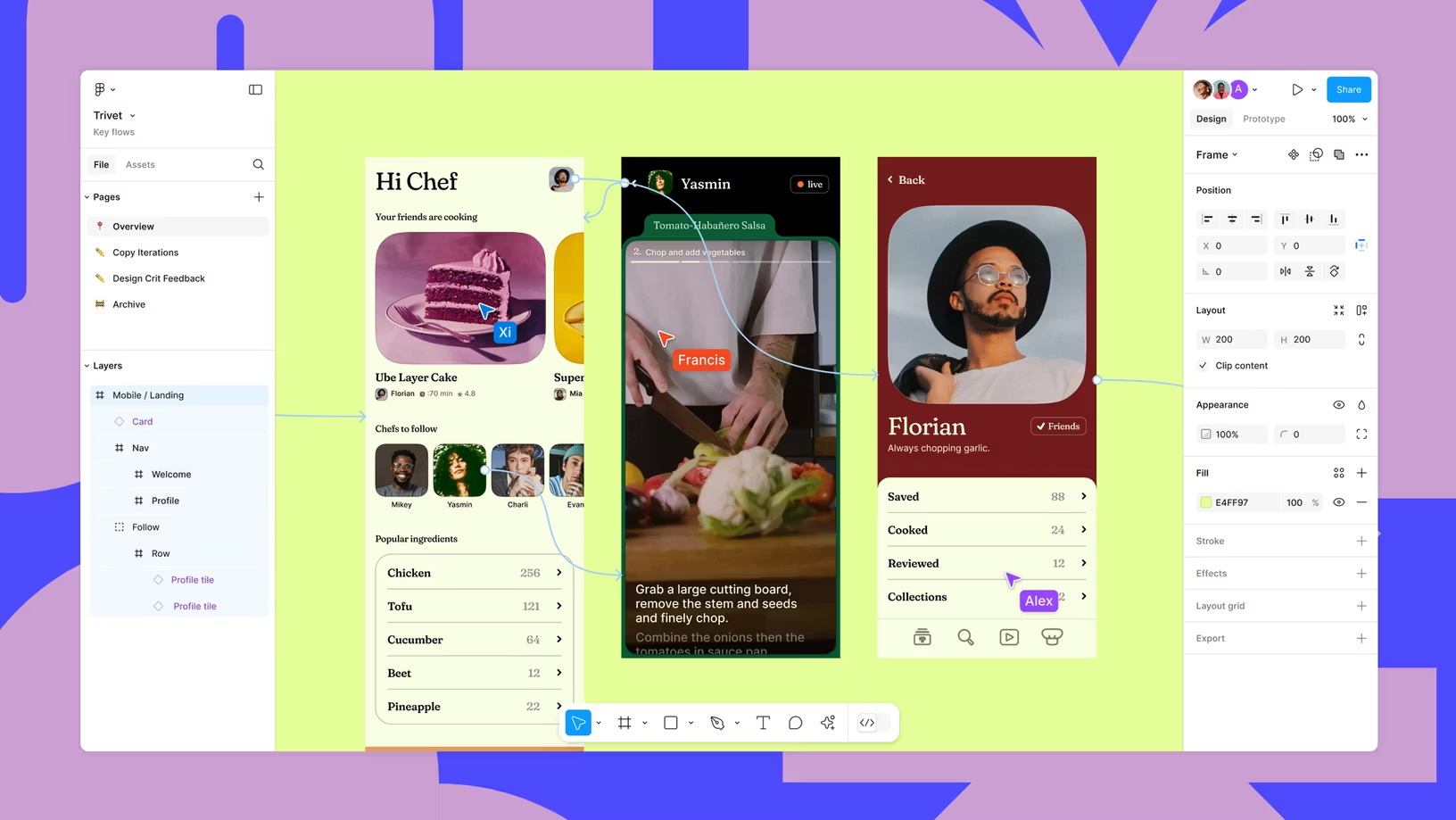
Toolbar ( bottom center) The tools you’ll use most. Includes Move, Frame, Shape, Pen, Text, and the Hand tool for panning. The Present and Share buttons also live up here.
Layers Panel (left) Shows every element in your file in a hierarchy. Frames sit at the top level, and everything inside them is nested below. Good layer naming habits start here.
Canvas (center) Your working space. Infinite and zoomable — frames float on it like artboards. This is where all the designing happens.
Pages (top of left panel) Figma lets you organize work across multiple pages inside one file — useful for separating wireframes, final designs, and component libraries.
Design Panel (right) Context-sensitive , it will change depending on what you have selected. Shows position, size, fill, stroke, effects, and layout options for any selected element.
Prototype Panel (right) Accessed via the tab next to Design. This is where you draw connections between frames, set triggers, choose animations, and define your prototype flow.
Assets Panel Stores all your Components and imported libraries. Drag from here to place instances anywhere in your design.
1. Using Adobe Illustrator to Export SVG
Open Adobe Illustrator: Launch the application and open your .ai file.
Export as SVG: Go to File -> Export -> SVG.
Import to Figma: Drag and drop the exported SVG file into a Figma document
Design Resources:
————————————————————
How to add a font to Figma
Prototyping Resources:
————————————————————
Figma Prototype Tutorial Playlist *Has many valuable tricks*
Prototyping 101
Figma tutorial: Prototype with variables
Create a Button Hover Effect in Figma
Vertical, Sticky, and Horizontal Scrolling in Figma
Animation basics in Figma
Figma Resources :
Introduction to Figma
Flax Academy Tutorials
Recent Posts


Leave a Reply